


Quick Answer: Can you use Netflix while traveling? Yes. You can stream Netflix movies online on abroad or download Netflix videos before traveling for offline playback on your device.
When you log in to your Netflix account on a hotel TV or your own device while traveling, a prompt with the "I'm Traveling" option will pop up. Once you confirm, you might find that your favorite Netflix shows are gone. This is due to Netflix's regional restrictions. Content on Netflix varies by country, which can make it difficult to access your favorite library or the shows you want while traveling.
Even worse, if you travel to a country where Netflix isn't available, you can't even use Netflix when traveling. But don't worry! There are several effective ways to bypass these geo-restrictions and stream Netflix when traveling abroad seamlessly. This guide will walk you through the best tools and tips to ensure you can continue your binge-watching adventures, whether you're traveling for business or pleasure. Let's take a look at how to watch Netflix while traveling!

Part 1. How to Watch Netflix While Traveling by Using Netflix's 'I'm Traveling' Feature
Suitable for: Ad-free Netflix subscribers on temporary trips (less than 30 days), either domestically or abroad. Ideal if you want to watch Netflix on a hotel TV with the local content library and no one at home is using your account during your travel.
The "I'm Traveling" or "Watch Temporarily" option is part of Netflix's system for managing account access outside of the designated "Netflix Household." It's designed to provide temporary access to legitimate users who are away from home. While it's a straightforward feature, it has significant limitations regarding content availability. If you like to watch Netflix from other countries, you can use 'I'm Travelling' while abroad.
How to Use Netflix 'I'm Traveling' Feature
When you attempt to log in to your Netflix account from a device that is not associated with your primary household's Wi-Fi network, Netflix's system may detect this and prompt you to verify your status.
- Log In: Open the Netflix app or website on your device (e.g., laptop, hotel smart TV, or tablet) in your new location. Netflix will detect a change in your IP address.
- Receive the Prompt: A screen will appear with the warning "This TV isn't part of your Netflix Household", detecting that you are not in your Netflix Household. It will present you with options, one of which is "I'm Traveling".
- Select the Option: Choose "I'm Traveling" to signal to Netflix that you are a legitimate user who is temporarily away.
- Get a Temporary Access Code: Netflix will then offer to send a temporary access code to the primary account holder's email address or phone number.
- Enter the Code: Once you receive the code, enter it on the prompt screen. This will grant you access to your account. Later, you can visit Netflix and start streaming movies online.

How Long Does Netflix Travel Code Last?
The Netflix travel code expires within 15 minutes, so you must use it quickly to log in. Once verified, the duration of your temporary access can vary. While Netflix hasn't published an official timeframe, user experiences suggest that a single verification grants access for 30 consecutive days. After this period, you will likely be prompted to re-verify your status as a traveler to continue watching from that location.
What's Netflix's 'I'm Traveling' Limit?
Here is the most important thing to understand about the "I'm Traveling" feature: It does not give you access to your home country's Netflix library.
When you verify your account using this method, you are simply granted access to the Netflix service in the country you are currently visiting. For example, if you live in the United States and travel to Japan, using the "I'm Traveling" option will unlock the Japanese Netflix library, not the American one. Your favorite shows that are exclusive to the U.S. will still be unavailable.
Part 2. How to Watch Netflix While Traveling Offline without VPN
For users who want to access to your home country's catalog and want to watch Netflix videos offline abroad without any limitations, you can download your favorite Netflix titles before traveling.
Method 1. Download Netflix Movies Offline Officially
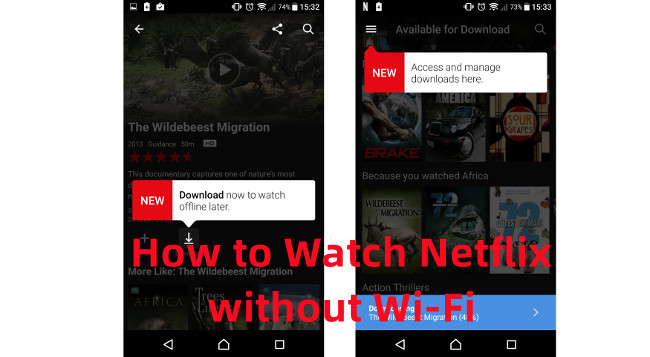
As a Netflix subscriber, you can download movies from Netflix for offline playback on supported devices while traveling.
- Open the Netflix app on your device and sign in to your account.
- Browse Netflix library and find a movie or TV episode that you want to download.
- Click the download icon to download Netflix videos.
- Go to the Downloads section in Netflix to check the downloaded titles and try to play them offline.
Method 2. Use StreamUlt Netflix Video Downloader as an Alternative
However, there are limitations of Netflix's built-in downloads, such as device limit, titles limit, etc. Luckily, third-party tools like StreamUlt Netflix Downloader allow you to bypass Netflix download limits and save videos without regional restrictions or expiration dates. It records Netflix content in formats like MP4 or MKV, removing Netflix DRM protection. This way, you can store the Netflix videos on a USB drive to save device storage. After that, you can watch offline Netflix videos on any device and anytime without logging into your Netflix account on household devices.
- Install the StreamUlt Netflix Video Downloader on Mac or Windows and log into your Netflix account.
- Preset your download preferences, including video format, audio quality, and subtitles.
- Find and download the movies, episodes, or shows you want to watch while traveling.
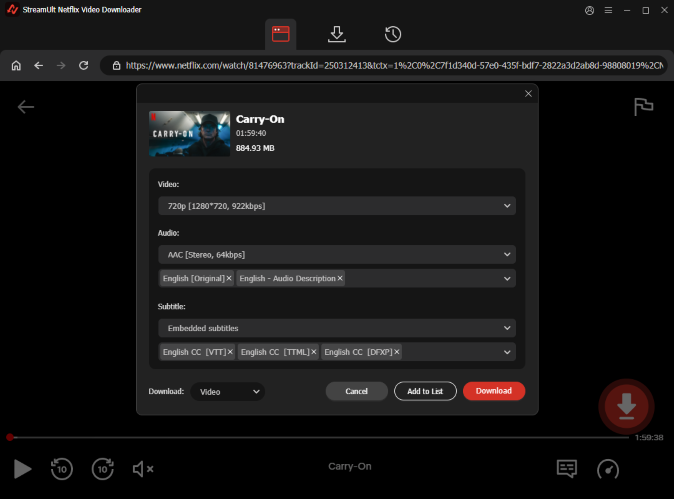
The free version allows you to download 3 minutes of each Netflix video. You can unlock the full version after subscription!
Part 3. How to Watch Netflix While Traveling via Other Ways
For travelers who want to access to their Netflix home library, more robust methods that you can try.
Method 1. Pay for the Extra Member Slot
Suitable for: Travelers on a Standard or Premium plan embarking on a long-term stay (a month or more) in a single foreign country, who are content with watching that country's local Netflix library.
This method is a workaround that uses a feature designed for sharing your account with someone outside your home. It's best suited for specific situations due to its cost and limitations. The Netflix's Add an Extra Member feature allows you to pay an additional monthly fee to create a separate account for someone who doesn't live with you. As a traveler, you can assign this slot to yourself.
| Country | Extra Member Price |
|---|---|
| US | $7.99 each/month |
| Canada | 7.99 CAD each/month |
| UK | £4.99 each/month |
| Australia | AU$7.99 each/month |
- Visit the Add Extra Member page on Netflix's website or in the app settings.
- Tap Buy an extra member slot and follow the on-screen instructions.
- Review your payment details and click Buy Now to confirm.
- Enter the required information, such as name and email address.
- Click the verification link sent via Netflix invitation email to activate the new account.

Method 2. Use VPN to Unblock Netflix Geo-Restrictions
Suitable for: Users who want to access their home country's Netflix library while traveling abroad.
Netflix enforces geo-restrictions and monitors password sharing by tracking your IP address. However, using a VPN with Meshnet technology can make Netflix believe you're still in your primary household. Meshnet allows you to route your connection through a household device, so Netflix detects your household IP address instead of your actual location. This way, you can stream Netflix while traveling anywhere without worrying about blocking issues.
- Install the NordVPN app on your primary household Mac/Windows computer and other devices you want to bring on the travel.
- Go to the NordVPN app on your household Mac/Windows computer.
- Find the Meshnet tab on the menu bar and turn on the function.
- Invite the devices you want to watch Netflix during travel.

Part 4. How to Fix Netflix While Traveling Common Issues
You may encounter various issues with Netflix while traveling, such as unstable internet connections, "Netflix Household" verification requirements, regional service restrictions, or expired downloads. The following steps can help you troubleshoot these issues.
Issue 1: Unable to stream Netflix on Hotel WiFi While Traveling
Hotel networks often require users to complete a login process or accept terms of use before accessing the internet. Additionally, hotel network speeds may be slow, or certain types of network traffic may be restricted.
Solutions: Open a web browser and complete the hotel Wi-Fi login process as required. Next, try visiting other websites to confirm the internet connection is working.. Later, restart the Netflix app and try again. If the connection remains unstable, try playing content you downloaded before your trip. Or, you can ask hotel staff if there are any network restrictions affecting streaming.
Issue 2: Netflix Keeps Buffering or Stops Playing
Frequent buffering is usually linked to a slow or unstable internet connection, but it can also be caused by app or device issues.
Solutions: Test your internet connection. If possible, move closer to the Wi-Fi access point. Close apps or download tasks that are consuming bandwidth. Restart the Netflix app and your device. Lower the streaming quality if the app offers this option. Switch to watching downloaded content if available.
If the problem persists, note the error code and consult the Netflix Help Center for more specific solutions.
Part 5. FAQs about Using Netflix While Traveling
Q1.What Are Netflix Travelling New Rules?
A1.In 2023, Netflix updated its usage policy, Netflix Household rules, to limit account access from different locations to prevent unauthorized sharing. Now, you must stream Netflix at least once a month using the app or browser on your main household's internet connection. If you don't, Netflix will block your access, and you'll be logged out automatically.
Q2.Does Netflix Change When You Travel?
A2.Yes, Netflix content can change when you travel due to geographical content licensing. You may notice that some of your favorite shows aren't available abroad. For example, The Crown is exclusive to Netflix UK and won't be available in Japan. Additionally, maturity ratings and classifications may vary, and some of your downloads may not work in other countries.
Q3.How Does Netflix Travel Work?
A3.Netflix detects changes in your IP address, account activity, and other user information. If it notices a login from a different location, it will prompt you to verify your account. By selecting the "I'm traveling" option, Netflix will recognize your location change and grant access accordingly.
Part 6. In Conclusion
This is all about how to watch Netflix while traveling. Whether you use a powerful VPN, or Netflix's extra member slots to access your home library or rely on Netflix's built-in travel features for temporary access, there's always a way to watch.
For the ultimate travel-proof solution, take your Netflix shows offline. Download everything you want to watch beforehand with Netflix's built-in download feature or StreamUlt Netflix Video Downloader. After that, you can enjoy your trip without ever worrying about bad Wi-Fi or regional blocks again.
You May Be Interested





Alex Mercer, a multimedia expert at StreamUlt, specializes in streaming video conversion, tips, and troubleshooting, providing innovative solutions to simplify digital life.


Leave a Comment (0)