


In the world of media streaming, Kodi stands out as the ultimate customizable hub for all your movies, music, and shows. However, if you want to watch Netflix on Kodi, there is no official Netflix app and official Kodi Add-on for Netflix.
Luckily, there is a third-party Kodi add-on for Netflix that bridges the gap. This guide will show you how to install Netflix addon for Kodi, common issues, and the best alternative way to watch Netflix movies and shows on Kodi.

Part 1. Does Kodi Have Netflix Add-on?
Kodi does not have an official Netflix add-on, but you can still get Netflix on Kodi using a third-party add-on named plugin.video.netflix from CastagnaIT. This method allows you to access Netflix content through Kodi's interface. However, since Kodi doesn't natively support Netflix, you'll need to manually install a third-party repository to get it working.
Because this Kodi Netflix add-on is unofficial, it is not overseen by Kodi, which means there's some risk involved when downloading from unknown sources. However, if you follow the correct installation steps and take precautions, you can stream Netflix safely. Just remember that your viewing experience could be affected by factors such as your internet connection, your device and the performance of the add-on may vary.
Note that current announcements from the CastagnaIT project indicate that development has been suspended because changes to the Netflix website have made it impossible to play videos properly. The notice also notes that even when playback is possible, the current video quality is limited to Standard Definition (SD) and supports only selected Linux and Android devices.
Netflix Kodi Add-on: Current Device Compatibility
| Device / Platform | Netflix Kodi Expectation | Recommended Method |
|---|---|---|
| Android TV | Work on some compatible devices, but playback is not guaranteed | Try the add-on or use the official Netflix app |
| Fire TV / Firestick | Playback is not guaranteed | Use the official Netflix app |
| Nvidia Shield | Add-on compatibility is not guaranteed | Use the official Netflix app |
| Windows | Current project playback limitations apply | Use Netflix via an officially supported method |
| macOS | Current project playback limitations apply | Use Netflix via an officially supported method |
| Linux | Work on some compatible devices | Try the add-on if you accept its limitations |
| Raspberry Pi | Playback depends on the operating system, DRM and device configuration | Expect compatibility limitations |
| LibreELEC / CoreELEC | Playback is not guaranteed | Try the add-on if you accept its limitations |
| iPhone / iPad | Not supported | Use the Netflix app |
| Apple TV | Not supported | Use a supported Netflix platform |
Part 2. How to Watch Netflix on Kodi via Add-on
Currently, Netflix add-ons only work on Kodi 19 (Matrix) or newer. If you're using an older version, like Kodi 18 or earlier, you will need to update as the Netflix add-on won't function on those versions. Besides, Apple iOS and tvOS are not supported.
How to Download and Install Netflix Add-on on Kodi
Step 1Update to Kodi 19 (Matrix) or Later
- If you're not using Kodi 19 (Matrix) or a newer version, go to the official Kodi website and download the latest version.
- Install the update and open Kodi.
- On Kodi's main screen, click the gear icon (Settings) in the top-left corner.
- Click System.
- In the left-side menu, click Add-ons.
- On the right, toggle the option to Allow Unknown Sources on. A warning will pop up. Click Yes to confirm you're okay with installing third-party add-ons.
Step 2Add Netflix Repository Source
- Go back to the Settings menu and choose File Manager.
- Double-click Add Source. In the window that pops up, click <None>.
- Type or paste this URL exactly as it is: https://castagnait.github.io/repository.castagnait/
- Press OK. Give it a name you'll remember, like "Netflix Repo", and click OK again.
Step 3Install the Netflix Repository & Add-on
- Head back to Kodi's main menu and click Add-ons.
- In the top-left corner, click the Package Installer icon (it looks like a little open box).
- Select Install from Zip File.
- Find and click the source you just added (e.g., "Netflix Repo").
- Click the file named
repository.castagnait.zip. Kodi will install it automatically. - After installing the repository, return to the Add-ons menu.
- Select Install from Repository.
- Click on CastagnaIT Repository (this is the one you just installed).
- Open Video Add-ons, find Netflix, and click Install.
- Kodi will install the Netflix add-on for you.
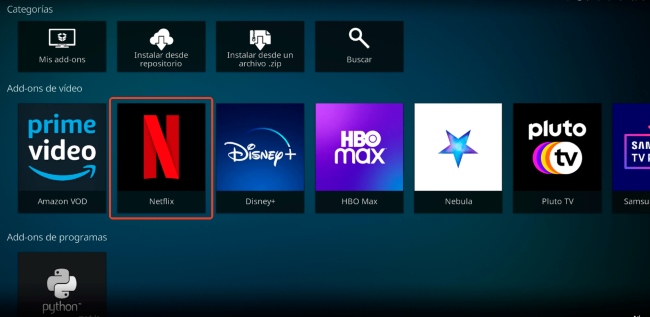
Step 4Install InputStream Adaptive (If Prompted)
- During installation, Kodi might ask you to install additional tools like InputStream Adaptive and Widevine DRM. These are required for Netflix to function properly.
- If this happens, just click Yes to install them.
- Once everything is installed, go back to the Add-ons section on Kodi's home screen.
- Open the Netflix add-on.
- Enter your Netflix email and password to log in.
- You're now ready to start watching Netflix!
Even after successfully installing the Netflix add-on in Kodi, the maximum video quality you can achieve (whether 4K, 1080p, or 480p) depends entirely on your device's Widevine Digital Rights Management (DRM) security level:
Widevine L1: Only devices officially certified by Netflix (such as Nvidia Shield, Apple TV, or certified smart TVs) possess L1 certification, enabling 1080p and 4K Ultra HD streaming within Kodi.
Widevine L3: Most Linux-based open-source devices (such as the Raspberry Pi) and uncertified Android TV boxes only support the L3 level. Due to copyright protection mechanisms, Netflix video quality on these devices is capped at 480p or 720p. Furthermore, playback often suffers from stuttering due to the lack of hardware decoding support.
For better video quality or smoother streaming, go to the Netflix Add-on Settings and adjust the quality to HD or 4K (if your device supports it).
Ensure that InputStream Adaptive is enabled for better streaming performance. Go to "Add-ons" > "My add-ons" > "VideoPlayer InputStream". Manually set "Max Resolution general decoders" and "Max Resolution secure decoders" to 1080p or 720p based on your device's performance; this prevents the add-on from automatically selecting a resolution that is too high, which could cause the device's decoder to crash.
Part 3. How to Fix Netflix on Kodi Not Working
While using Netflix with Kodi, you may get some errors. Here you can take a look at the common issues and get solutions to solve them.
Issue 1: Netflix Kodi Add-on Won't Install
Fix: Make sure that you are using a supported Kodi version. Also, confirm that the CastagnaIT repository ZIP is intact and comes from the official source. Or, you can try to remove an incomplete repository installation and try again.
Issue 2: Netflix Says My Password Is Incorrect on Kodi
Fix: First, please verify your login credentials via Netflix. If your account works elsewhere, it is recommended to use the "Authentication Key" login method. Log in to Netflix via a desktop browser, install the Chrome extension 'Netflix Authentication Key Extractor', export the '.key' file (which contains the PIN), and then select the key file login option within the Kodi add-on.
Issue 3: Netflix Shows a Black Screen on Kodi
Fix: First, check the InputStream Adaptive add-on and the device's playback configuration. If audio plays but the screen remains black, please update the relevant Kodi components and restart Kodi.
Issue 4: Netflix Keeps Stuttering During HD Video Playback on Kodi
Fix: Navigate to Kodi's 'Add-ons' > 'My add-ons' > 'VideoPlayer InputStream' > 'InputStream Adaptive'. Then switch to the 'Advanced' settings tab, locate 'Override HDCP status' and enable it. For low-performance devices (like Raspberry Pi), go to Netflix add-on's 'Expert' settings menu, manually enable 'Enable VP9 video profile' (VP9 software decoding is often more efficient than H.264 on certain open-source hardware). Additionally, manually delete the old Widevine library files in the '~/.kodi/cdm/' directory to force the add-on to download the latest compatible CDM file.
Issue 5: 'MSL Error' or 'IPC Timeout' on Netflix Kodi
Fix: Do not repeatedly attempt playback. First, navigate to the Netflix add-on's main menu, scroll down, and select the "Clear cache / MSL data" option. After clearing the data, completely exit and restart Kodi (do not just restart the add-on; you must terminate the Kodi process). If the error persists, go to Kodi's 'System' > 'Logging' and enable 'debug logging'. If a "CryptoSession" error appears in the log, the current Authentication Key has expired; you must re-extract the '.key' file using the Chrome extension to overwrite the local authorization.
Part 4. How to Watch Netflix Videos on Kodi Offline
While using free Netflix add-on with Kodi is a good option, however, whenever Netflix updates its API or tightens DRM encryption policies, the add-on may suddenly crash, fail to log in, or display a "black screen" error. Furthermore, playing high-bitrate 4K Netflix video in Kodi makes the stream highly susceptible to buffering or stuttering caused by network fluctuations. If you wish to build a permanent home theater Netflix media library that remains unaffected by network issues or API updates, downloading the Netflix content locally is the best alternative.
Downloading Netflix videos to your computer and adding them to Kodi gives you even more control. By doing this, you can watch your favorite Netflix shows and movies on Kodi for free without worrying about internet speed, buffering, or the reliability of an add-on.
Unfortunately, Kodi doesn't have a built-in option to download Netflix videos. You have to achieve this by using StreamUlt Netflix Video Downloader. It allows you to remove DRM from Netflix videos and save Netflix to MP4 or MKV in 1080p solution for private use. Then you can easily add those files to Kodi to manage and play just like any other media player for free without any limits.
One of the standout features of StreamUlt is its ability to bypass regional restrictions. If you find that a certain show or movie isn't available in your area, use a VPN, and StreamUlt lets you download it anyway, so you can watch it offline without any hassle. Plus, since it supports the popular MP4 format, your downloaded content will play seamlessly on any device, including Kodi.
How to Get Netflix on Kodi for Free
Step 1Access Netflix Content within StreamUlt
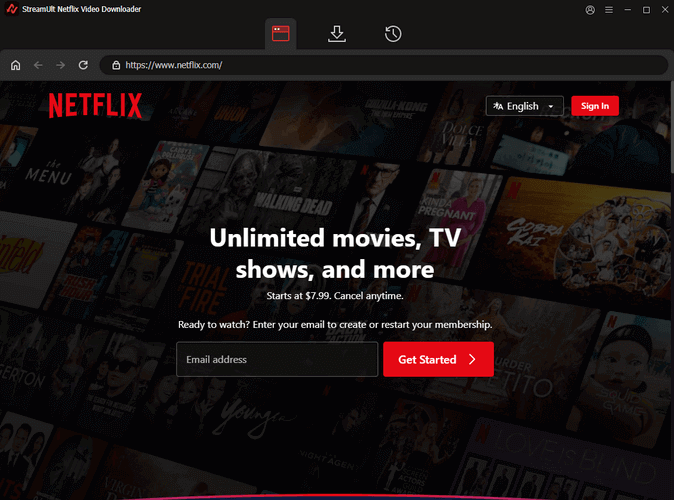
Start by launching StreamUlt Netflix Video Downloader on your laptop. Once it's open, click on the integrated Netflix Web Player and select the "Sign in" option. Enter your Netflix account details to gain access to the entire library of movies, TV shows, documentaries, anime, and original content.
Step 2Customize Netflix Download Settings for Kodi
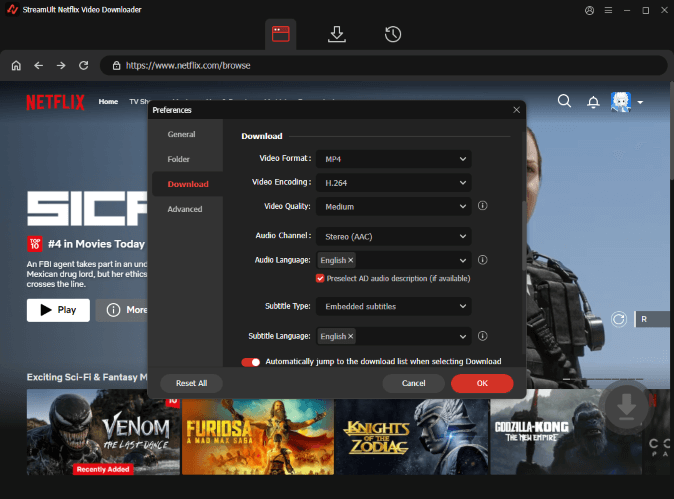
Next, click the hamburger icon (three horizontal lines) in the top right corner of the StreamUlt interface. From the drop-down menu, choose "Settings." In the "Download" section, you can customize various options to enhance your viewing experience. Here, adjust the output video format, codec, quality, audio channel, language, and subtitle preferences to suit your needs. Once you're satisfied with your selections, click "OK" to save your changes.
Step 3Select Netflix Content for Download
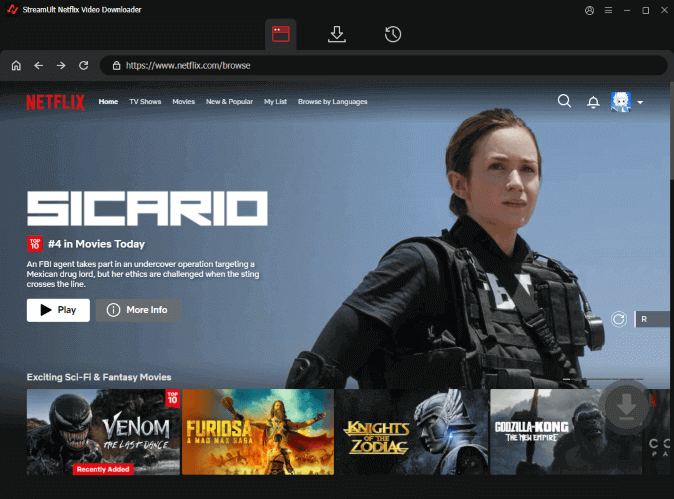
After closing the Settings window, return to the StreamUlt Web Player. Use the search bar to find specific content by entering its name, keyword, or code. Alternatively, you can paste the URL of the Netflix show or movie you wish to download. When you find the video you want, click on it to proceed.
Step 4Initiate the Download Process
To begin downloading your selected content, click the "Download" button. StreamUlt will automatically take care of downloading individual episodes or entire seasons for TV shows, as well as full-length movies. Just sit back and wait for the downloads to finish; the files will be saved as MP4 or MKV files in your laptop's default download folder.
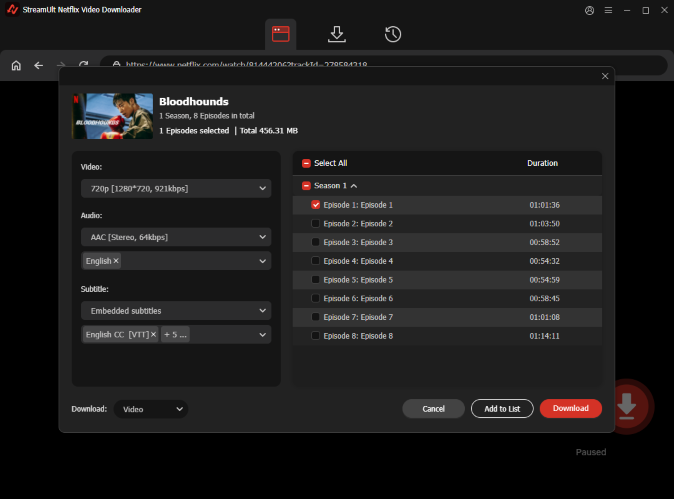
Step 5Access Your Netflix Downloads Offline
Once your downloads are complete, navigate to the "Converted" section at the top of the StreamUlt interface to view all your finished downloads. If you need to locate the files on your laptop, simply click the "Folder" icon next to each title, and it will open the folder containing your downloaded videos.
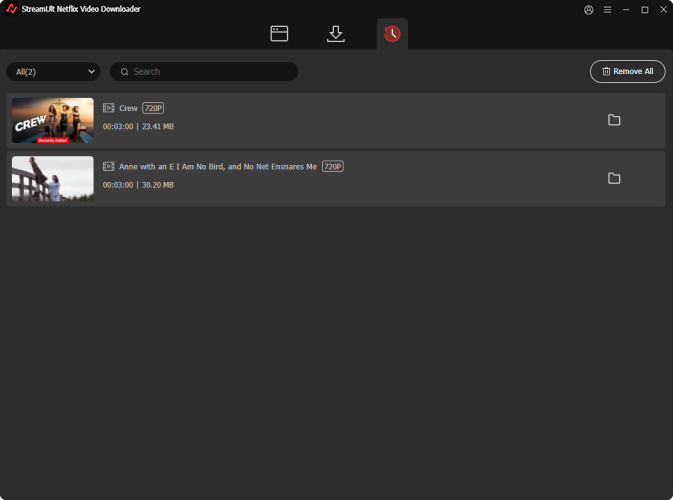
Step 6Watch Netflix on Kodi for Free
- Open Kodi on your device.
- Navigate to the Video section on the main menu.
- Select Files from the submenu.
- Click on Add videos... to open the video source dialogue.
- In the window that appears, click on Browse and navigate to the folder where you saved your downloaded Netflix videos. This is usually in your Downloads folder unless you specified a different location.
- Once you locate the folder, select it and click OK.
- After selecting the folder, you'll return to the dialog box. Here, you can give this video source a name (like "Netflix Downloads") for easy identification.
- Click OK to finish adding the video source.
Now, your downloaded Netflix videos are integrated into Kodi! To watch them, simply go back to the Videos section, select Files, and then click on the source name you just created. You'll see all your downloaded content ready to stream.
Part 5. FAQs about Using Netflix with Kodi
Q1.How Do I Enable Dolby Vision and Dolby Atmos When Using the Kodi Netflix Add-on?
A1.First, you must have a Netflix Premium subscription. Second, your playback device (such as an Nvidia Shield) and your TV/audio system must provide hardware support for these Dolby formats. Finally, go to Kodi's 'Settings' > 'System' > 'Audio', enable 'Allow passthrough', and check the corresponding options for Dolby Digital Plus / TrueHD.
Q2.Is the Netflix Kodi Add-on Safe?
A2.Installing any third-party Kodi add-on carries additional risks. Therefore, always use the project's official repository rather than modified ZIP files from unknown websites. Avoid unofficial "fully loaded" Kodi builds that come bundled with numerous unknown add-ons. Never provide your Netflix login credentials to untrusted third-party repositories or websites.
Q3.Can You Get Free Netflix on Kodi?
A3.No, you cannot get Netflix free on Kodi. The recommended Netflix add-on is simply a client that provides access to the official Netflix service. You are still required to have an active, paid Netflix subscription to log in and watch content.
Conclusion:
To wrap up, even though Kodi doesn't offer an official Netflix add-on, you can still watch your favorite Netflix shows and movies by using a third-party add-on.
However, currently, the Netflix Kodi add-on is not reliable and there are playback limitations.
If you prefer a simpler and more reliable way to access your Netflix content, consider using StreamUlt Netflix Video Downloader, no buffering or internet issues to worry about.
You May Be Interested




Alex Mercer, a multimedia expert at StreamUlt, specializes in streaming video conversion, tips, and troubleshooting, providing innovative solutions to simplify digital life.




Leave a Comment (0)