


"Can you rip movies from Netflix?" Yes. Though Netflix doesn't offer a built-in feature that allows you to download movies as MP4 or MKV, you can use other tools like StreamUlt Netflix Video Downloader to help rip Netflix videos and movies locally for offline watching.
In this article, we'll delve into effective methods for ripping films from Netflix in high quality. We'll also provide supplementary tips on how to create GIFs from these "ripped" clips and address your most frequently asked questions on the topic.
Part 1. Ripping from Netflix vs Downloading on Netflix
Netflix originally offers a download feature for its mobile app users, allowing subscribers to save movies and TV shows for offline viewing. With a simple click, content could be downloaded and stored for offline access, but it came with certain restrictions.
As an alternative, "ripping" from Netflix offers greater flexibility, although it comes with its own considerations. To choose a better method for watching Netflix movies and shows offline, the following table compares the two methods side by side:
| Features | Ripping from Netflix | Downloading on Netflix |
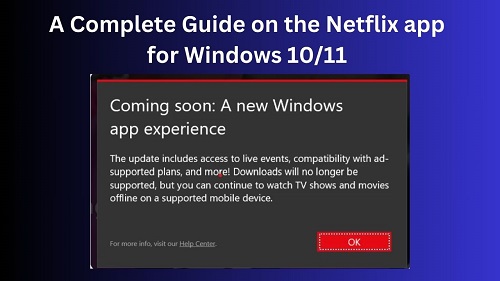
| Device Specificity | Works on any device with proper software. | Download feature limited to mobile apps, no support on Windows app anymore. |
| Video Quality | Preserves the original quality. |
Quality may vary based on settings. |
| Playback Options | Ripped videos can be played on any compatible media player. | Downloads only available within the Netflix app. |
| Content Availability | All streaming videos can be ripped. | Not all titles in the Netflix library are available for download. Besides, some titles have limits on how many times they can be downloaded per year. |
| Offline Accessibility | Ripped videos can be kept forever | Downloads expire in 7 to 30 days; only lasts 48 hours once it's played. |
| Subscription Dependent | Even if you cancel your subscription, you can access and watch Netflix movies. | Downloads are only accessible while your Netflix subscription is active. |
Ripping can provide more flexibility in terms of playback and availability. If you want to save and keep your favorite Netflix movies and shows as long as you like, you'd consider ripping videos from Netflix. If you prefer to watch Netflix offline, downloading on the Netflix app is also a good option, but be aware of the expiration time for Netflix downloads.
Part 2. How to Rip Movies from Netflix in High Quality
The traditional ripping method is by using a screen recording software to capture Netflix content while watching it. While this method may seem like a quick solution, it comes with several limitations:
- Loss of video quality
- Time-consuming
- Black screen problems
- Inconsistent performance
- Potential for disruption
- Audio synchronization issues
To avoid these drawbacks, using a specialized Netflix video downloader is the most reliable option. Among all the download tools available on the market, you can try StreamUlt Netflix Video Downloader, which not only ensures that you rip high-quality streaming videos (in Full HD, 4K Ultra HD or HDR resolution), but also allows you to batch download them in local MP4/MKV format without any loss of resolution or audio quality.
It can also download Netflix titles not officially available for download through the Netflix app. It offers the added features of downloading subtitles and multi-language audio tracks to ensure a seamless offline viewing experience. You can play these permanent video file on various devices without the Netflix app or an active subscription. Click the download button and try it for free.

Key Features of StreamUlt Netflix Video Downloader
Free Trial Free Trial* Security verified. 5, 481,347 people have downloaded it.
- Download Netflix movies, TV shows and more locally
- Convert Netflix movies and TV shows to MP4 or MKV
- Save multilingual language and subtitles in two types
- Remove ads from Netflix and keep original video quality
A Tutorial on How to Rip Netflix Movies to Computer via StreamUlt Netflix Video Downloader
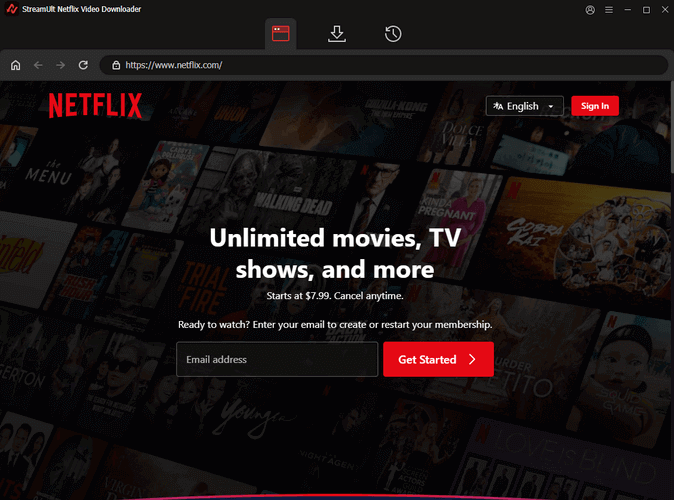
Step 1Sign in to Your Netflix Account
Open the StreamUlt Netflix Video Downloader on your Mac or Windows computer and click "Sign in". Once signed in, you'll be able to access the entire selection of Netflix content, which includes movies, TV series, documentaries, anime, and original creations.
Step 2Configure Netflix Ripping Settings
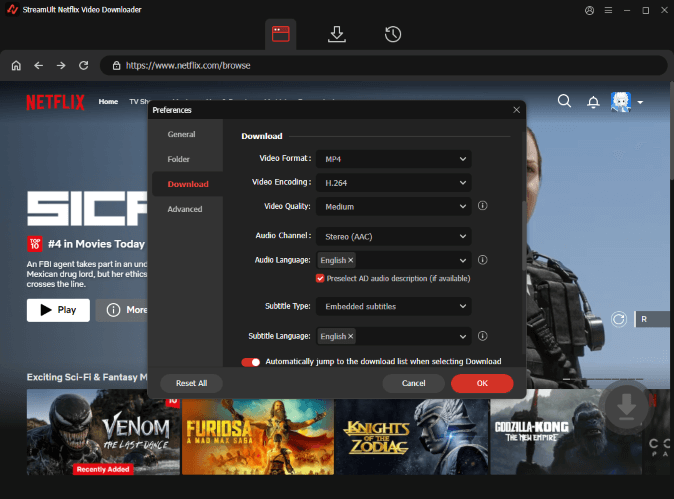
Click the hamburger icon in the upper-right corner of the StreamUlt interface and choose "Preferences". In the "Download" section, personalize your preferences for video format, encoding type, video and audio quality, language, and subtitles. After making your choices, click "OK" to apply the changes.
Step 3Rip Shows from Netflix
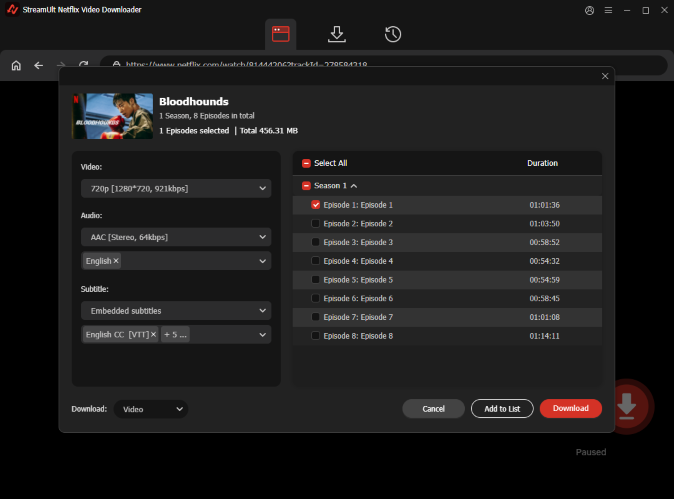
Use the search bar to look for specific shows or movies by title, keyword, URL, or code. Once you find the desired video, pick the episodes you wish to download and configure settings for video quality, audio options, and subtitles. When you're ready, click "Download" to begin to rip Netflix to MP4 or MKV.
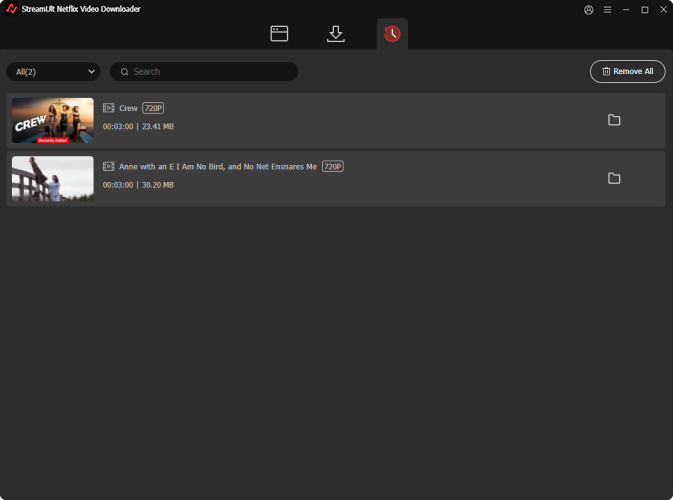
Step 4View and Play Downloaded Netflix Videos
You can check the downloaded content by clicking the folder icon next to the video title on the right side. Then, you can enjoy the Netflix videos offline at anytime, anywhere.
Part 3. How to Rip Films from Netflix via Screen Recording
While direct download solutions are often preferred, screen recording offers an alternative approach to capturing Netflix content as local files. This method involves using specialized software to record the video and audio as it plays on your computer screen in real-time.
For this purpose, TunesKit Screen Recorder is a popular third-party application worth considering. Compatible with both Mac and Windows computers, TunesKit is designed to record any screen activity, making it suitable for capturing streaming video from platforms like Netflix. Beyond just video, it also supports ripping audio from Netflix only, which can be handy for creating an audio-only version of a talk show or documentary.
A key feature of TunesKit Screen Recorder is its built-in trimming function. This allows you to easily edit out unwanted segments from your recorded Netflix video or audio clips, ensuring you save only the content you need. Let's look at how to use TunesKit Screen Recorder to rip videos from Netflix.
Before you even open TunesKit Screen Recorder, the most critical step to avoid a Netflix black screen during the recording is to disable hardware acceleration in your web browser.
How to Rip Video and Audio from Netflix via TunesKit Screen Recorder
- Download and open the Screen Recorder software for your operating system (Windows or macOS). You'll likely see a main interface with different recording modes.
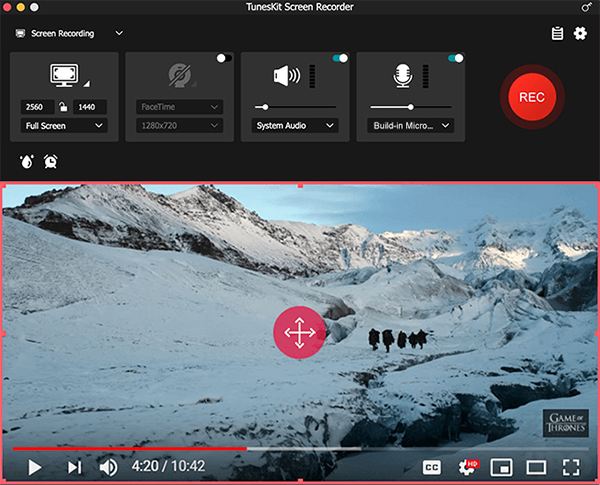
- Select the "Screen Recording" mode. This is the default and most common mode for capturing video from your screen. A recording window or dashed line might appear, allowing you to define the capture area.
- Open your web browser and navigate to Netflix. Log in to your Netflix account and find the movie or TV show you want to record. Start playing the Netflix content. Ideally, pause it right after it starts to prepare.
- Go back to TunesKit Screen Recorder. Use the tool's selection feature to precisely draw a box around the Netflix video playback area.
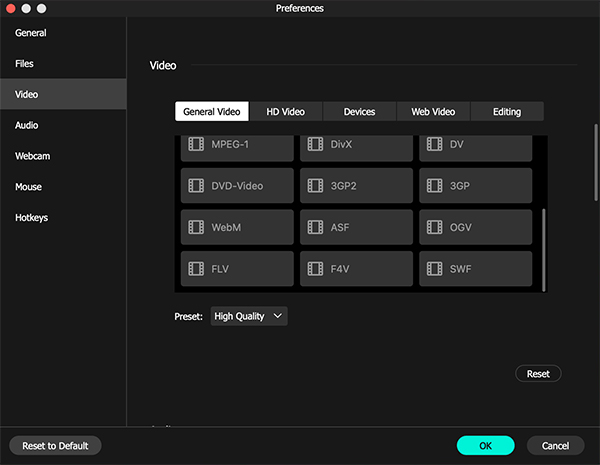
- Click the "Settings" gear icon within TunesKit to customize your desired video format, select a high-quality setting, a frame rate, and specify the destination folder on your computer where the recorded video will be saved.
- Click the "REC" (Record) button to screen record Netflix. There's usually a short countdown (e.g., 3 seconds). As soon as the countdown finishes and recording begins, quickly switch back to your browser and play the Netflix movie or TV show.
- Once the Netflix content has finished playing, go back to TunesKit Screen Recorder. Click the "Stop" button. The recorded video will appear in a "History list". It also offer basic editing options like trimming the beginning or end of the video.

Part 4. How to Rip Videos from Netflix via an Open-Source Tool
For tech-savvy users, yt-dlp is one of the most well-known open-source command-line video downloading tools on GitHub for you ro rip movies from Netflix. It supports thousands of websites and offers extensive control options for video selection, output formats, subtitles, metadata, authentication, and other download parameters.
How to Rip Netflix Videos via GitHub yt-dlp
- Visit GitHub yt-dlp webpage and download the latest release of this tool on your computer.
- After the installation, open Command Prompt on Windows or Terminal on Mac, then go to the folder where yt-dlp is installed.
- On yt-dlp, run the download command. Then it will analyze the Netflix video source and start to rip from Netflix to your computer.
- When downloaded, you can find the ripped Netflix movies on the target folder on your computer. Then you can view Netflix videos offline or move them to other devices for backup locally.
It takes much time to set up and configure yt-dlp before ripping videos from Netflix. If you are not familiar with command-line tool, you can try easier methods like StreamUlt Netflix Video downloader to help you.
Part 5. How to Rip Streaming Video from Netflix and Make GIFs
Beyond simply saving full movies or episodes, ripping short video clips from Netflix offers a creative avenue for generating custom GIFs. This is a fantastic way to capture iconic moments, humorous expressions, or beloved characters from your favorite Netflix content and transform them into shareable, animated images. Sharing these personalized GIFs with friends can add a fun and unique touch to your digital conversations. Here's how to do it:
How to Rip Netflix Clip Video as GIFs Using Gifzz
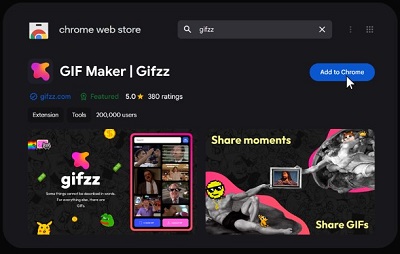
Gifzz is a user-friendly Google extension that allows you to create GIFs from Netflix video clips quickly and easily. Here's a step-by-step guide on how to use Gifzz to rip a clip from Netflix and convert it into a GIF:
- Go to the Chrome Web Store, and add Gifzz to your Chrome.
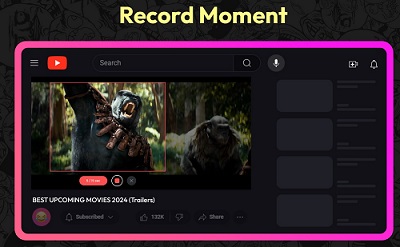
- Play the Netflix video you want to capture in Chrome and click "Create GIF" in Gifzz.
- Click the Record button.
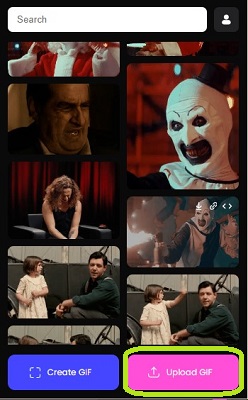
- When the recording is finished, click on the "Upload GIF" in Gifzz.
- Sign up for a Gifzz account and upload the GIF you just made.
- When it's uploaded, you can download your GIF to your computer for use.
Part 6. Which Is the Best Way to Rip Videos from Netflix
Once you understand the methods mentioned above, you can compare their differences before making a choice. Each method has its own strengths, and the best option depends on your priorities, whether you value convenience and recording flexibility, or prefer greater technical control.
| Features | Via StreamUlt Netflix Video Downloader | Via TunesKit Screen Recorder | Via yt-dlp | Via Gifzz |
| Best For | Save Netflix videos as local files | Record clips, permitted content | Tech-savvy users | Create short Netflix-related clips or GIFs |
| Ease of Use | Easy | Easy | Difficult | Easy |
| Output Format | MP4 and MKV | MP4, MKV, etc. | MP4, etc. | GIF or short video |
| Video Quality | Full HD, 4K Ultra HD, HDR resolution | Depends on playback and recording settings | Depends on source and supported formats | Designed for short clips |
| Subtitles & Audio Supported | Yes | Yes | Yes | Depends on the source and output |
| Batch Downloading | Yes | No | Yes | No |
| Speed | Fast | Real-time | Fast | Fast for short clips |
| Technical Skill | Beginner | Beginner - Intermediate | Advanced | Beginner |
Part 7. FAQs about Ripping Movies from Netflix
Q1.Is it legal to rip Netflix movies?
A1.Ripping videos from Netflix is generally considered a violation of the platform's terms of service. However, there are exceptions. For example, if you use the downloaded content solely for personal use and do not share or distribute it, enforcement of such rules may vary. Therefore, It is important not to distribute or share ripped content publicly.
Q2.Will ripped Netflix videos include subtitles?
A2.Yes, but it depends on what tools you're using. When using screen recording software to rip Netflix videos, the subtitles you capture will be limited to those visible on your screen during the recording. This means that only the subtitles that are actively displayed on the video (in the language and format you've selected) will be recorded.
If you are using StreamUlt Netflix Video Downloader, you have much more control over the subtitles. This tool allows you to download Netflix subtitles in various languages, and you can choose between different subtitle formats, including embedded subtitles (which are part of the video) or standalone subtitles (separate subtitle files that can be toggled on or off).
Part 8. Conclusion
While Netflix offers an official download feature for many titles, it has limitations, such as expiration dates, device restrictions, and content availability. You can refer to workarounds in this post to rip movies from Netflix, which provides more freedom.
If you want full Netflix movies and TV shows in high quality offline and flexible output options, it is better use StreamUlt Netflix Video Downloader to rip videos from Netflix.
If you just want to record permitted Netflix content, you can use TunesKit Screen Recorder to screen record and rip videos you want.
If you only need a short video clip of GIF from Netflix, try using Gifzz.
Or if you are advanced users, yt-dlp is suitable for you to rip from Netflix.
But remember that ripped Netflix videos cannot be shared or distributed, which may conflict with Netflix's terms of use. When done responsibly, ripping from Netflix lets you access high-quality videos offline, enjoy versatile playback, and even create shareable GIFs.
You May Be Interested






Alex Mercer, a multimedia expert at StreamUlt, specializes in streaming video conversion, tips, and troubleshooting, providing innovative solutions to simplify digital life.




Leave a Comment (0)